


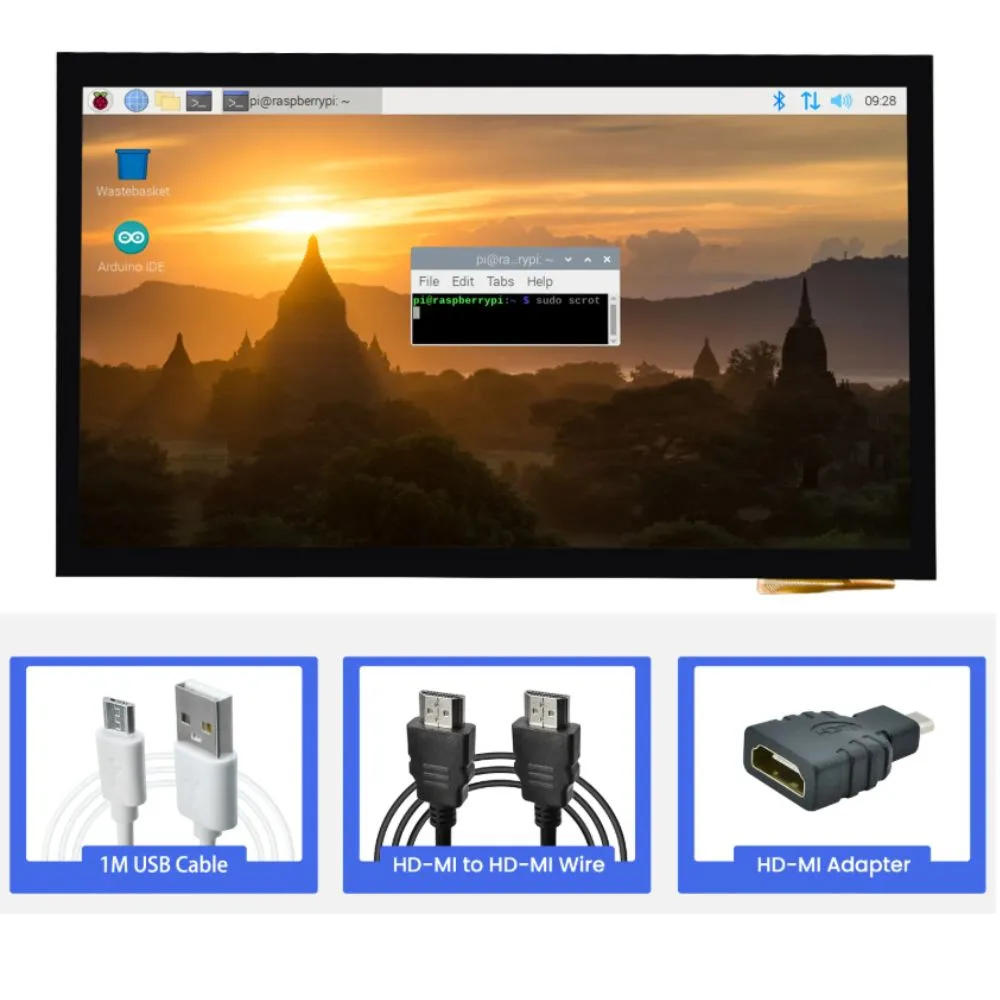
A 10.1-inch capacitive HDMI touch screen for the Raspberry Pi is a display module with a 10.1-inch diagonal screen that uses an HDMI interface for video, and a capacitive touch overlay for user input (touch). The capacitive touch usually supports multi-touch (e.g. 5-point or 10-point) depending on the hardware and drivers.
Because it uses HDMI for video, it can be treated much like a conventional monitor — you only need to supply the right video and power connections. The touch interface is typically handled via USB (i.e., a USB cable from the screen to the Pi).
Such displays are popular in maker and embedded systems, kiosk interfaces, portable Raspberry Pi “tablet” or panel projects, and any embedded project needing a touch interface.
A concrete example is the Waveshare 10.1-inch Capacitive Touch Screen LCD (E) which offers 10-point capacitive touch, HDMI interface, IPS panel, and is “driver-free” for many platforms.
Another example is a 52Pi model with 10.1″, 1024×600 resolution, capacitive multi-touch, dual built-in speakers, etc.
2. Features :
Here are the common features you’ll see in such a display:
| Feature | Description / Typical Value |
|---|---|
| Screen size (diagonal) | ~ 10.1 inches |
| Panel type | IPS (In-Plane Switching) is common, for good color and viewing angles |
| Resolution | Often 1024 × 600, sometimes 1280 × 800, depending on model |
| Touch type | Capacitive (vs resistive) — more responsive, supports multi-touch |
| Touch points | 5-point, or 10-point depending on the implementation and OS support |
| Interface – video | HDMI (or micro-HDMI) — so it behaves like a standard HDMI monitor |
| Interface – touch | USB (connect to a USB port on the Pi for touch data) |
| Brightness / backlight control | Many include brightness / contrast / backlight adjustments (often via OSD or control pins) |
| Viewing angle | Wide angles (e.g. 170° or more) due to IPS technology |
| Audio | Some models include built-in speakers or audio output (e.g. a 3.5 mm jack) |
| Mounting / form factor | Often include mounting holes or a frame, sometimes a mounting bracket for the Raspberry Pi board itself |
| Driver / OS support | Many advertise “driver-free” operation on Raspberry Pi OS, Windows, etc. (i.e., no extra driver installation) |
| Power | Usually powered by 5 V (via USB) or via a dedicated power input (check current draw) |
One manufacturer (SunFounder TS-10) gives these specs: 10.1″, resolution 1280×800, 10-point capacitive, IPS panel, wide viewing angle 178°, with dual audio output, etc.
3. Importance / Benefits
Why would you want such a display? What advantages does it bring to Raspberry Pi or embedded projects?
-
Touch interface: You get direct user interaction without needing a separate mouse/keyboard, which is ideal for kiosks, control panels, home automation panels, etc.
-
Larger real estate: 10.1″ is large enough to comfortably display more complex UIs, dashboards, or apps.
-
Plug-and-play experience: Because it uses HDMI + USB, it often requires minimal setup (no tricky DPI displays or CSI/DSI ribbon cables).
-
Versatility: Can also be used as a general-purpose HDMI monitor for other devices.
-
Embedded aesthetics: Integrates well into enclosures or embedded systems, with mounting options.
-
Multi-platform support: Many models advertise compatibility with Raspberry Pi OS, Windows, Ubuntu, etc.
In summary, it brings the familiarity and convenience of touch-based UIs to Raspberry Pi / embedded systems in a form factor that is large enough for real-world use.
4. Tips for Use / Best Practices
When working with a 10.1-inch capacitive HDMI touch screen, consider these tips and caveats:
-
Power supply must be stable and sufficient
The screen plus touch may draw a significant current. If powered from the Raspberry Pi’s USB port, you may need a supply of 5 V at 2–3 A or more to avoid flicker or instability. -
Check wiring early
-
HDMI (or micro-HDMI) from Pi → screen
-
USB from Pi → screen for touch
Optionally ground or control signals if needed.
-
-
Edit config.txt (Raspberry Pi) if required
Some displays may not auto-negotiate the correct resolution. You may need to add lines likehdmi_group,hdmi_mode, orhdmi_cvtto force the correct 1024×600 or 1280×800 mode.
(Some vendors provide recommended config.txt settings.) -
Calibrate touch (if needed)
Even though many advertise “driver-free,” sometimes calibration is required (especially under different OSes). Tools likexinput_calibratoror built-in calibration utilities may help. -
Mind viewing angles and reflections
Even with IPS, ambient light or reflections can affect usability. Consider an anti-glare film or hood if needed. -
Thermal and space constraints
If you mount the Pi behind the screen, ensure good airflow and that the dimensions are compatible. -
Check OS / driver compatibility
For multi-touch features (e.g. gestures), the OS must support the touch protocols. Some platforms may only support single-touch by default. -
Use mounting holes / brackets
To build clean, stable enclosures, use the mounting features provided by the display.
5. Typical Specification
Below is a typical (but not universal) specification for a 10.1″ capacitive HDMI touch screen module:
| Parameter | Value / Range |
|---|---|
| Display size | 10.1 in diagonal |
| Panel type | IPS |
| Native resolution | 1024 × 600 (some 1280 × 800 variants) |
| Touch technology | Capacitive multi-touch (5 or 10 points) |
| Viewing angle | ~ 170°+ (horizontal & vertical) |
| Video interface | HDMI or micro-HDMI |
| Touch interface | USB (often micro-USB or USB-B) |
| Brightness / backlight | Adjustable (e.g. via OSD or control pins) |
| Operating voltage | 5 V DC (USB) |
| Current draw | Varies (check datasheet, possibly up to 1 A or more for full backlight) |
| Audio output | May have built-in speakers or audio jack |
| Mounting | Screw holes or frame mounts; sometimes Pi mounting points |
| Dimensions | Varies (frame, bezel) |
| OS support | Raspberry Pi OS, Windows, Ubuntu, etc. (driver-free in many cases) |
As an example, a Raspberry Pi HDMI IPS Touch Screen (10.1 inch) datasheet lists 1280×800 resolution, capacitive touch, HDMI + USB interfaces, and compatible with Raspberry Pi and other mini-PCs.
The Waveshare Capacitive version lists 10-point touch, HDMI, IPS, 1024×600, etc.
The 52Pi model lists 1024×600, capacitive multi-touch, built-in speakers, brightness control, etc.


There are no reviews yet.